beginner 8 min color grading color match scopes beginner
How to Color Match Clips in DaVinci Resolve (Step-by-Step)
Color matching is the foundation of professional grading. Whether you are cutting an interview across multiple cameras or matching B-roll to A-roll, Resolve gives you precise tools to make two clips look like they belong together. This tutorial covers the fastest workflow using the Color Match palette and waveform analysis.
Prerequisites
- •DaVinci Resolve 18 or later
- •Two clips with a gray card or skin tone visible
- •Basic familiarity with the Color page
Steps
1
Set Up the Comparison (Wipe)
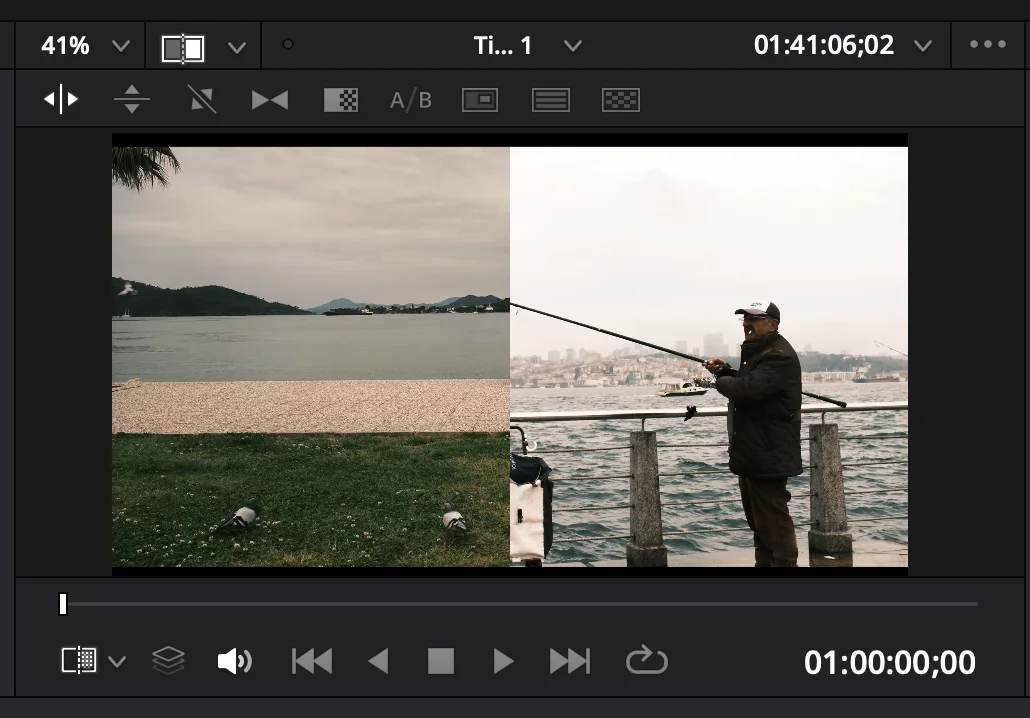
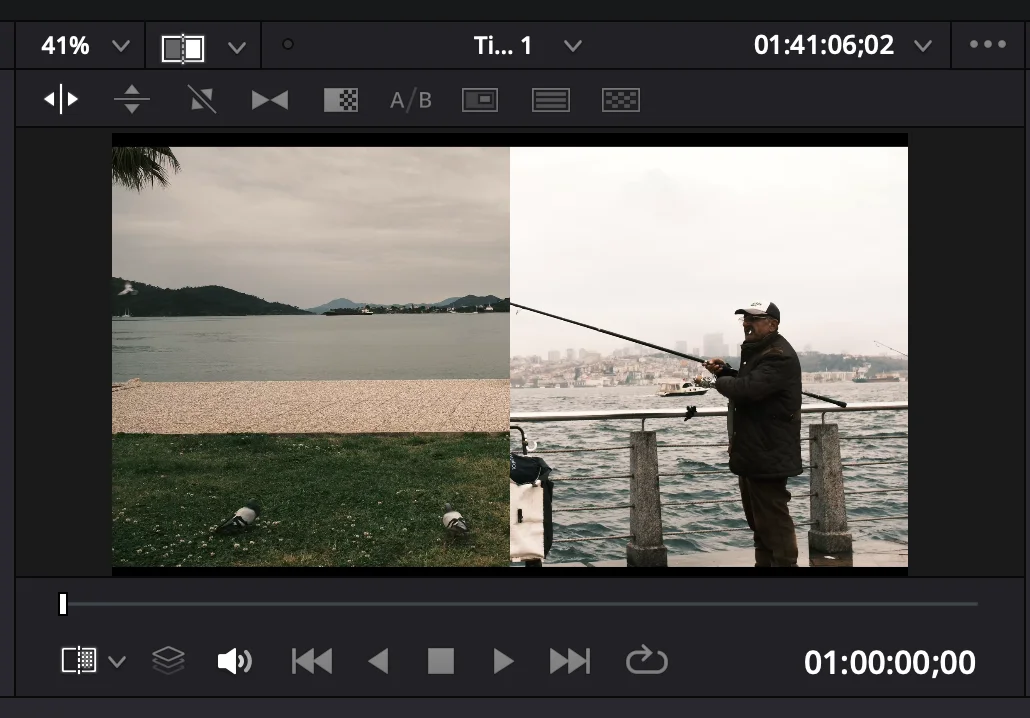
Navigate to the Color Page. On your timeline, click on the clip you want to adjust (your target clip) so it is selected. Then, right-click on the timeline thumbnail of the clip you want to mimic (your reference clip) and select Wipe Timeline Clip. This will display a split-screen in your viewer, allowing you to easily compare both clips side-by-side.
2
Match the Exposure (Luma)
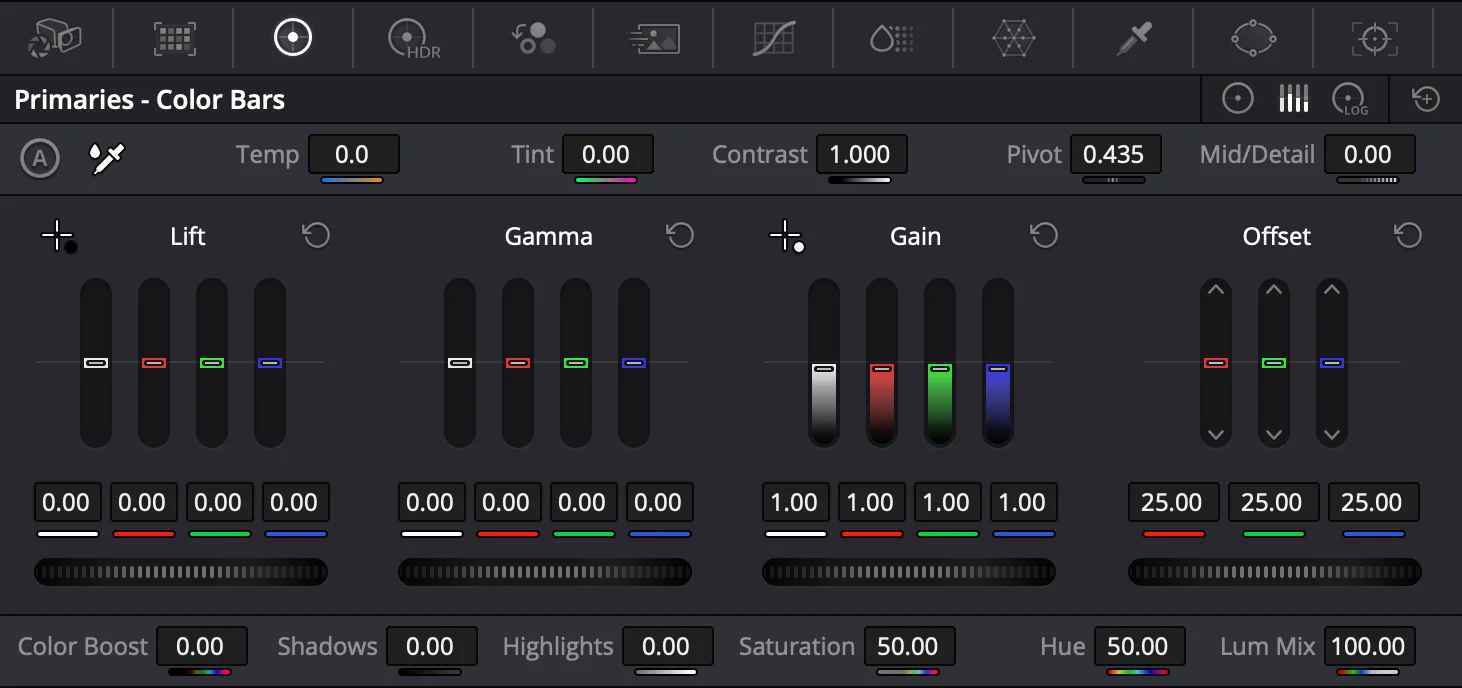
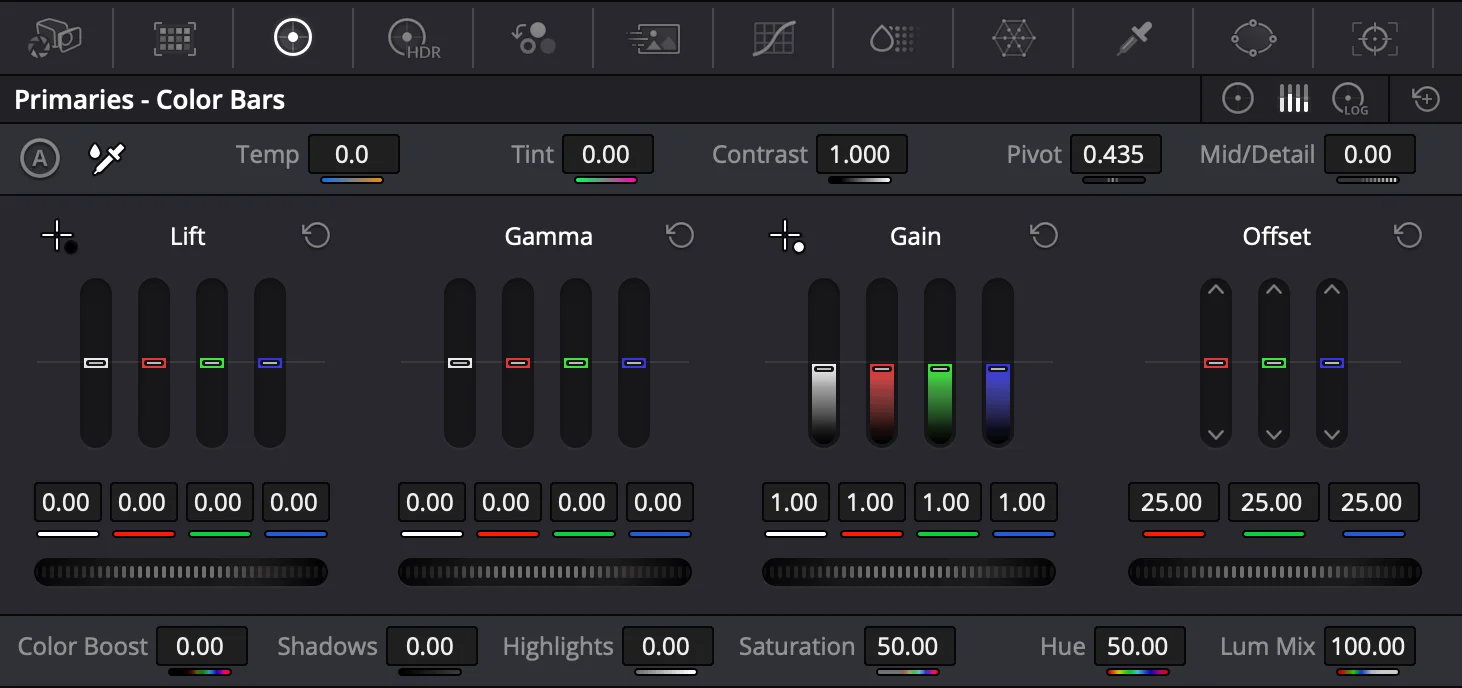
Before touching any colors, you must match the brightness and contrast. Using the Primary Color Wheels, adjust the master wheels (the dials beneath the color circles) for Lift (darkest shadows), Gamma (midtones), and Gain (brightest highlights). Adjust these on your target clip until its light levels mirror the reference clip in your split-screen viewer.
3
Match the Color (Chroma)
Once the exposure matches, focus on the hues. Use the Temp (temperature) and Tint controls to fix any obvious overall differences in warmth or green/magenta shifts. Then, click and drag the center points within the Lift, Gamma, and Gain color wheels to fine-tune the specific color casts in the shadows, midtones, and highlights until the two sides of the wipe blend seamlessly.
Conclusion
Color matching is a skill that improves with practice. Once you are comfortable with the manual workflow, try matching using only the scopes to build a deeper understanding of how color works in Resolve. Bonus Tip for a 1-Click Alternative: If you want the software to attempt this automatically, you can skip the manual adjustments by selecting your target clip, right-clicking the reference clip, and choosing Shot Match to this Clip. For an organized grading workspace, see Creator Pro.
Related DaVinci Resolve Plugins from the Store