How to Build Unlimited DaVinci Resolve Plugins Using AI Workers & Claude Code
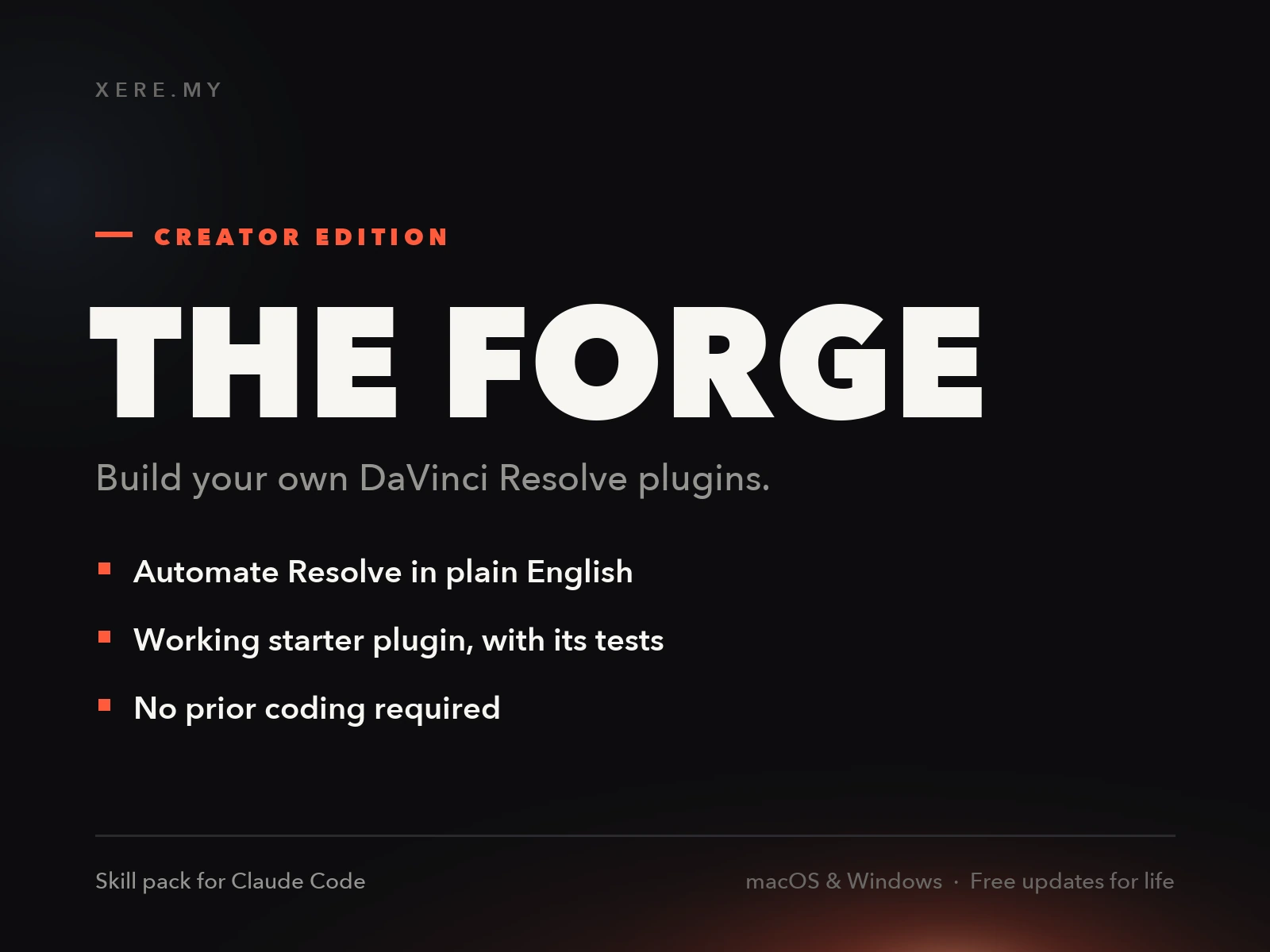
You do not need to learn Python or C to build your own DaVinci Resolve plugins. With Claude Code as your AI worker and The Forge Creator as the skill that teaches it how Resolve actually works, you describe what you want in plain English, and the worker builds, tests, and installs the plugin for you. The loop is: describe, build, test, installed. This tutorial walks through the real setup: from installing Claude Code to running and modifying your first plugin inside Resolve in about ten minutes.
Prerequisites
- •DaVinci Resolve 18 or later (Free or Studio)
- •A Claude Code subscription billed by Anthropic (the AI worker that does the building)
- •The Forge Creator edition downloaded from your purchase link
- •About 10 minutes
Steps
Install Claude Code, your AI worker
claude and press Return, then follow the sign-in prompt in your browser.Windows: open PowerShell (Start key, type PowerShell, press Enter), follow the same official instructions for Windows, then type claude and press Enter to sign in.This is the one recurring cost of The Forge: Anthropic bills Claude Code separately. The Forge Creator itself is a one-time purchase with free lifetime updates.
Install The Forge skill into Claude Code
INSTALL.command. If macOS blocks it, right-click the file, choose Open, then confirm.Windows: double-click INSTALL.bat.The installer copies the skill into ~/.claude/skills/forge-creator. To verify it worked, open claude in any folder and ask: what DaVinci Resolve skills do you have?. It should mention that it can build Resolve plugins.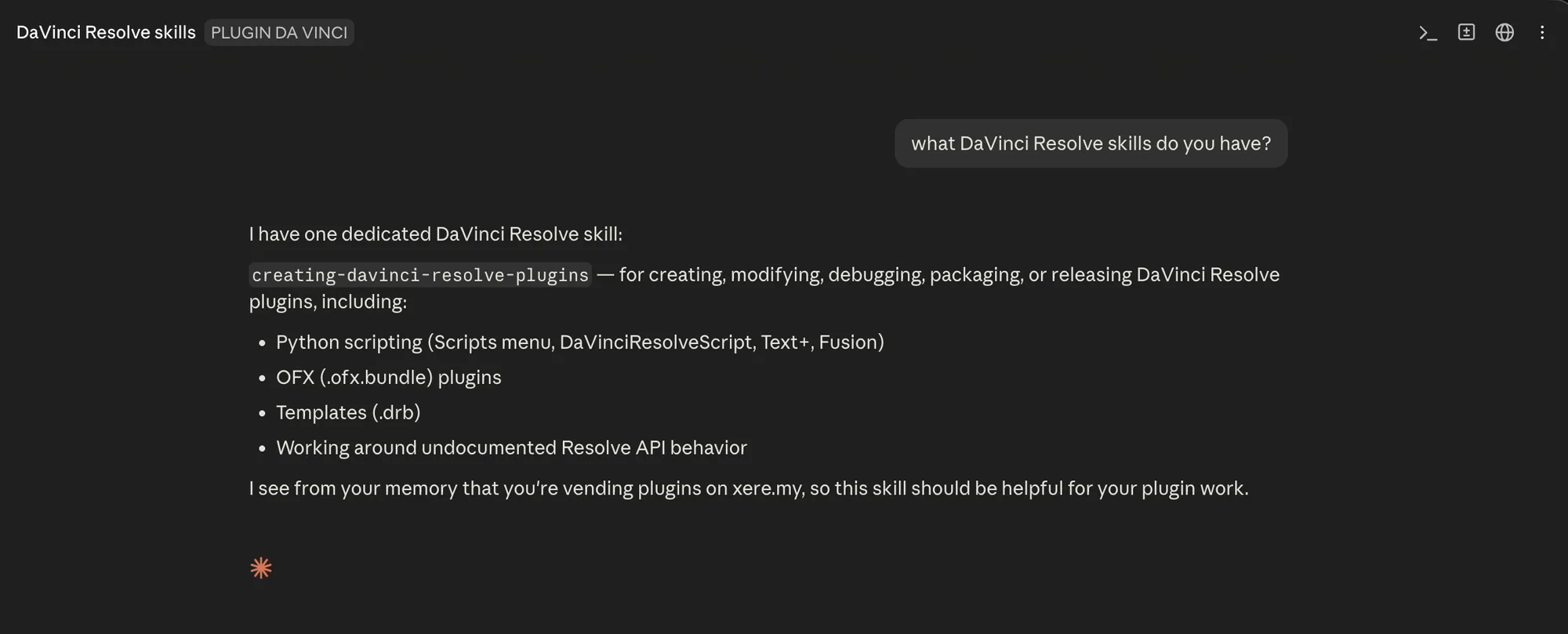
Run the starter plugin: Marker Notes Exporter
starter-kit folder, run the installer for your system (INSTALL.command on macOS, INSTALL.bat on Windows).Then in DaVinci Resolve: open a project with a timeline that has a few markers, and go to Workspace > Scripts > Edit > Marker Notes Exporter. A confirmation dialog tells you how many markers were exported and where the CSV file went: one row per marker, with timecode, name and notes. That is a working plugin, doing a real job, in under a minute.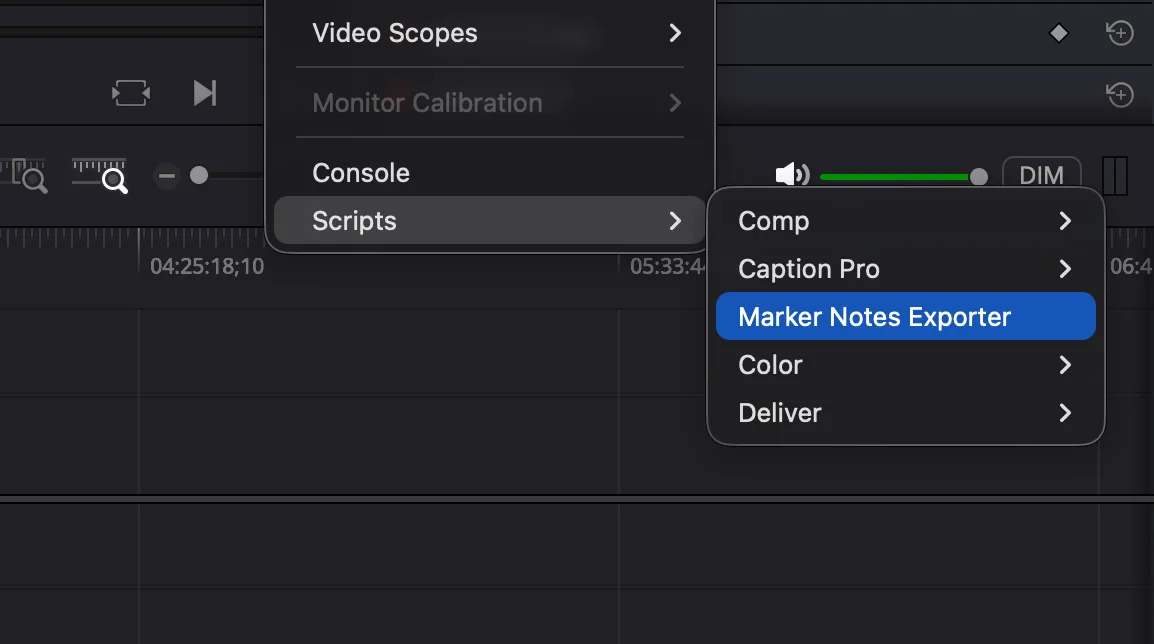
Modify it with plain English
claude inside the starter-kit folder and ask for a change in your own words, for example:also add a column that counts how many markers there are of each colorWatch what happens: your worker reads the existing code, edits it, tests the change using stand-in fakes that imitate Resolve (so it does not need the app open for every edit), and reinstalls the updated plugin. Re-run it from the Scripts menu and your new column is there. That is the full loop: describe → build → test → installed.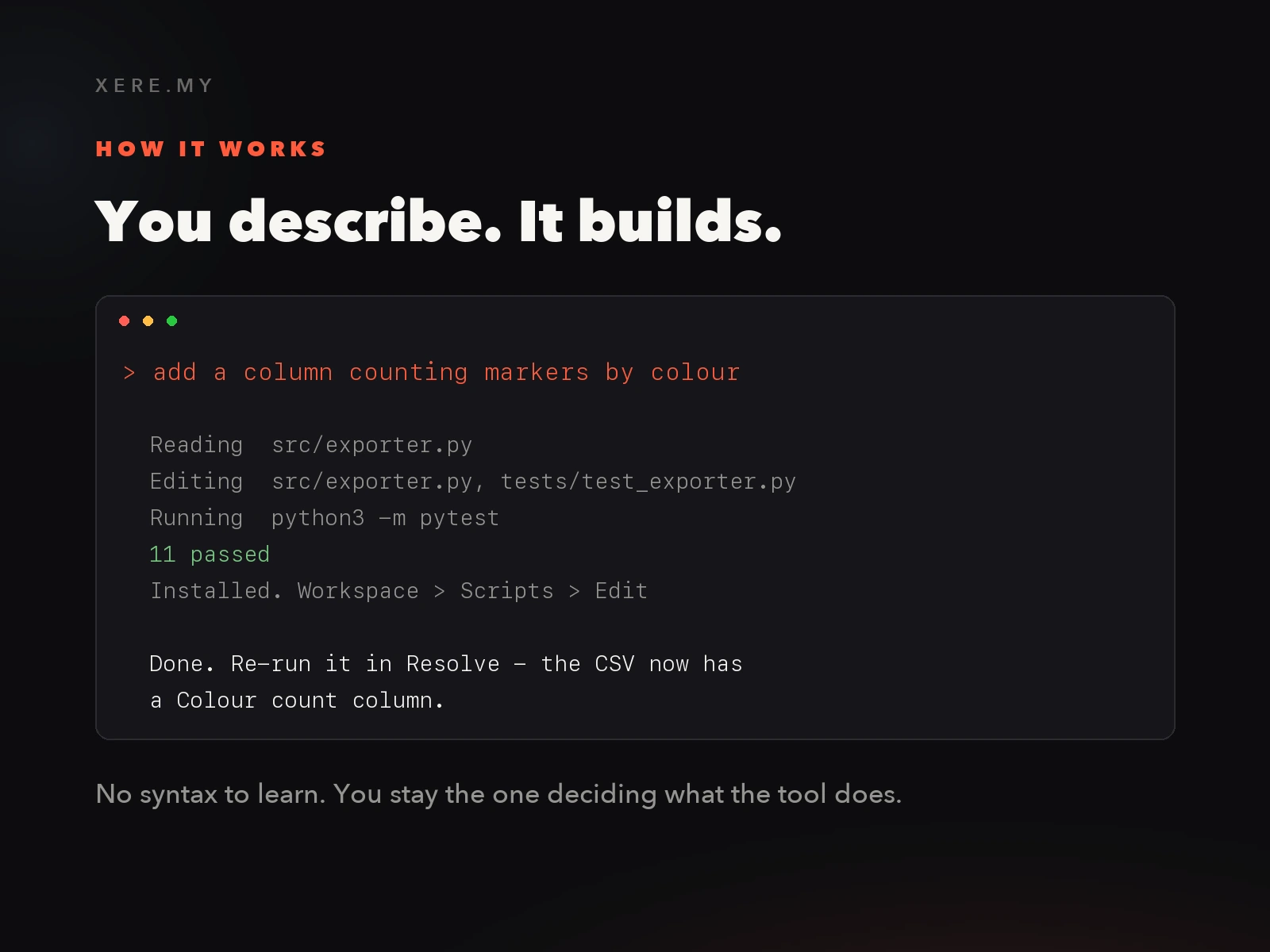
Build your own plugin from scratch or upgrade to Studio
claude in any folder and describe the tool you want: a batch renamer, a timeline stats report, a rough-cut assembler from marked selects, a still exporter at every marker. Your worker handles the API calls, error wrapping, and installation.If you ever want to go beyond Python automation into real-time C-based OFX pixel effects, or package your plugins with installers and EULAs to sell under your own name, The Forge Studio adds the full OFX framework and release kit. Upgrading later costs the difference.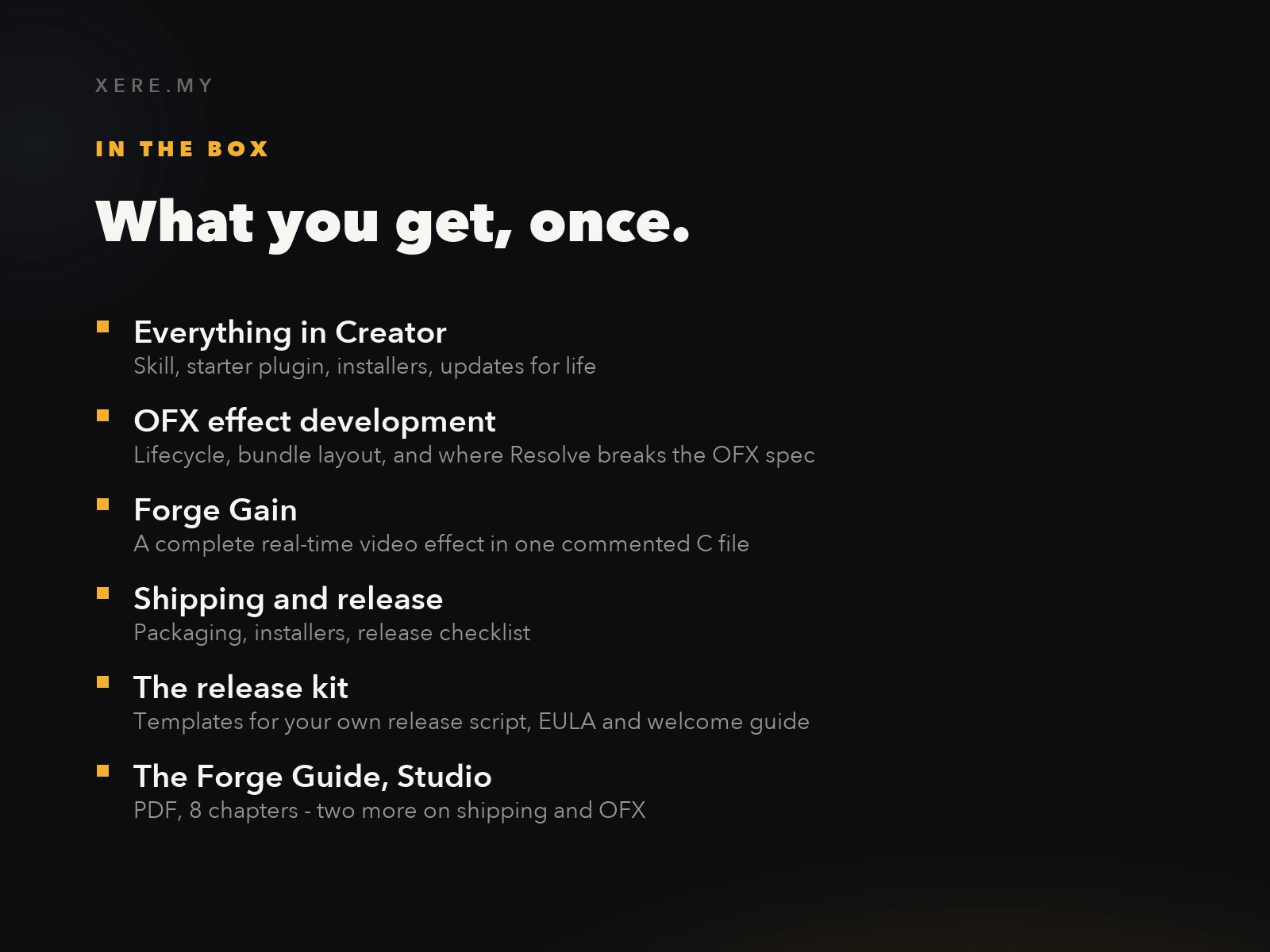
Conclusion
The Forge: Build Custom Plugins with AI
Teach Claude Code to Write DaVinci Resolve Tools
Stop buying off-the-shelf plugins. Use specialized AI Workers trained on DaVinci Resolve APIs to build, test, and release your own automation in plain English.
- Describe what you need in plain English
- AI builds, tests, and installs the plugin for you
- Includes starter kit & full API reference knowledge
Related DaVinci Resolve Plugins from the Store